


iThenticate
iThenticate is a service provided by Turnitin to assist academic authors to scan your written work such as journal articles or conference papers for originality to avoid the pitfall of plagiarism when preparing items for publication. It allows researchers to easily upload and scan documents, manuscripts, research and other professional works into iThenticate. It is NOT intended for classroom and assignment use and is different from the Turnitin account provided to students.
Available to:
Staff (Academic Staff), Students (for Research Postgraduate and Taught Postgraduate students only)
Service Hours:
7x24
How Do I Use iThenticate?

iThenticate vs Turnitin
iThenticate does not save a copy of any file to a database of sources (unlike Turnitin, similar software used in undergraduate teaching). It protects intellectual property while allowing researchers to identify errors in citation and attribution.
Turnitin has been made specifically for classroom use and is intended for reviewing students' assignments. At Lingnan University, Turnitin has been integrated with Moodle, instructors must set up classes and Turnitin assignments for student submissions on Moodle.
Who Can Access?
ITSC has subscribed to iThenticate software for detection of plagiarism for academic staff and postgraduate students to assist you with checking scholarly research outputs. To apply, please submit the following request form to ITSC.
- For Academic Staff: iThenticate Account for Turnitin (Academic Staff)
- For Postgraduate Students: iThenticate Account for Turnitin (Postgraduate students)
How to Access?

Upon account activation, you may log in to iThenticate 2.0 via the following link:
https://lingnanithenticate.turnitin.com
If you have forgotten your password, please click "Forgot Password" on the login page to reset your password.
If you do not receive the password reset email from iThenticate, please check your Junk Email folder.
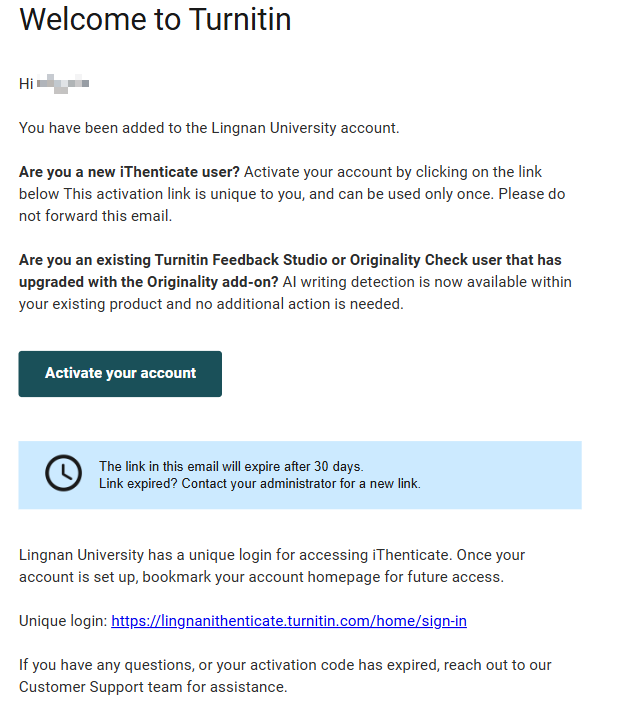
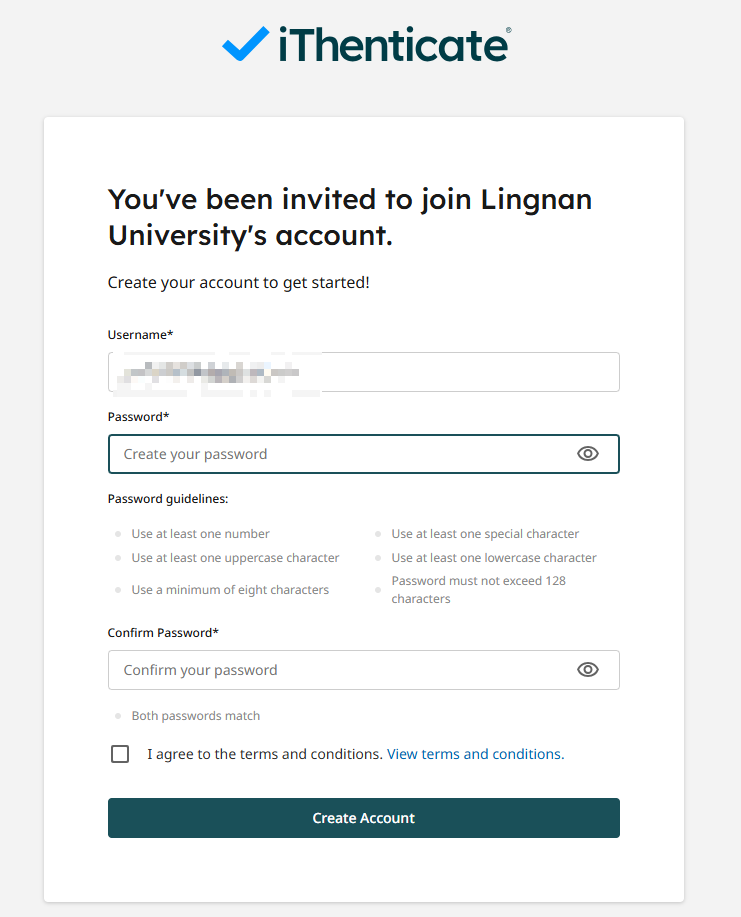
Guide to Activate iThenticate Account
- For Academic Staff: iThenticate Account for Turnitin (Academic Staff)
- For Postgraduate Students: iThenticate Account for Turnitin (Postgraduate students)
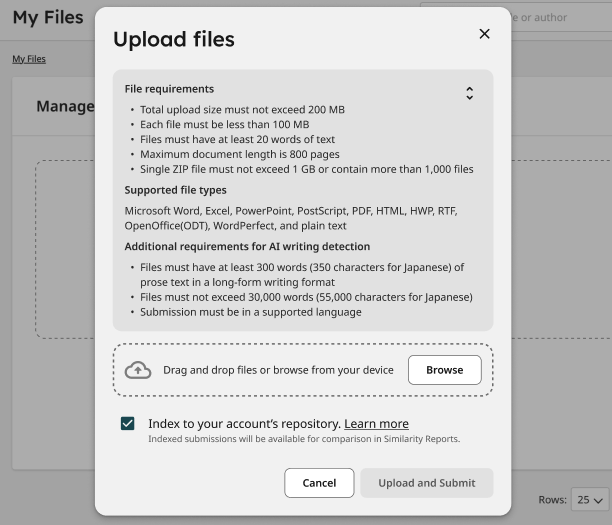
Guide to Upload Documents to iThenticate
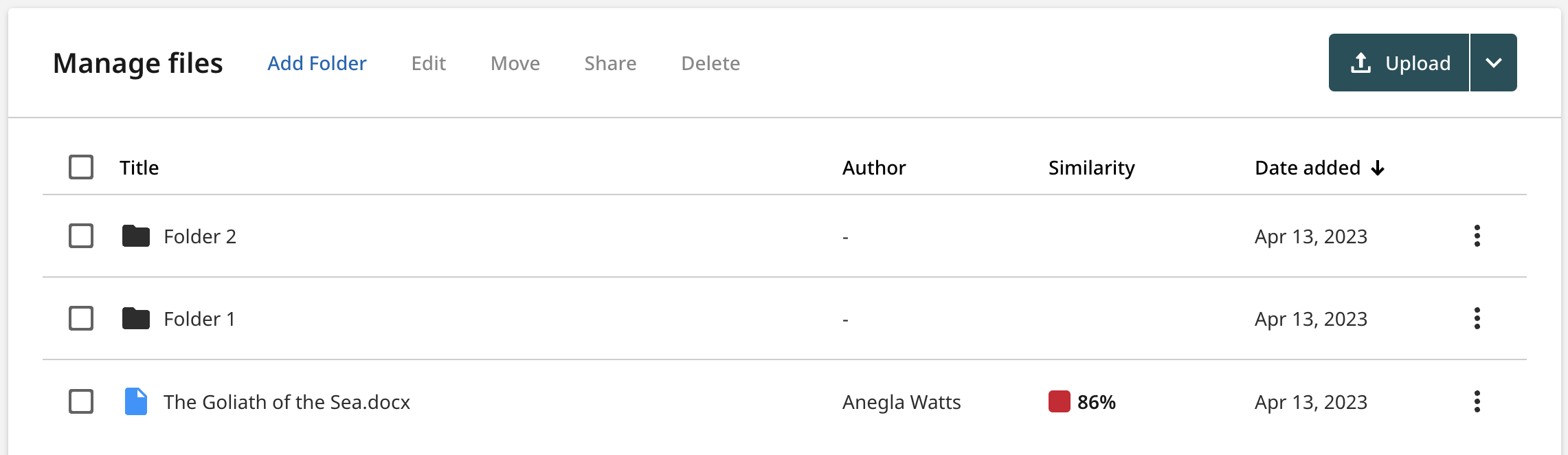
The color of the report icon indicates the submission’s similarity score, based on the amount of matching text found. The percentage range is 0% to 100%. The colors for similarity ranges are:
| Green: 0% matching text | |
| Blue: 1-24% matching text | |
| Yellow: 25-49% matching text | |
| Orange: 50-74% matching text | |
| Red: 75-100% matching text |